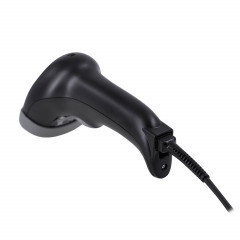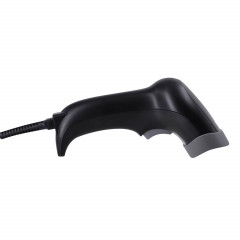

A parcel pickup point runs on its barcode scanner. Every parcel is scanned when it arrives from the marketplace, when it goes on a shelf, when it is handed to the customer and when it is returned. If the scanner is slow to read a QR code from a phone screen or keeps disconnecting, the queue grows and the pickup point's rating drops. This guide covers the equipment you need to run a Wildberries or Ozon pickup point in Kazakhstan or to handle Kaspi.kz orders, which barcode scanner and label printer to choose, and how to connect and set them up.
What you need to open a pickup point in Kazakhstan
Marketplace requirements are similar: a registered business (sole proprietor or LLP), premises with a separate entrance, a stable internet connection and a workstation for the operator. Floor area and distance to the nearest pickup point are agreed individually. Public guides mention at least 30 m² for Wildberries and from 20 m² for Ozon in large cities.
The only equipment marketplaces strictly require is a computer and a barcode scanner. A label printer, shelving, cameras and scales make the work faster and reduce errors.
Ozon supports new partners in Kazakhstan with a guaranteed income for the first six months if the pickup point opens in a zone marked on its map. Under the program terms, this is up to 1,000,000 tenge in Almaty and Astana, up to 750,000 tenge in towns with more than 10,000 residents and up to 450,000 tenge in small towns. Terms change, so check the current figures on the Ozon partner website.
Pickup point equipment checklist
| Equipment | What it is for | Required |
|---|---|---|
| Computer or laptop | Wildberries partner software, the Ozon pickup point app or web version | Yes |
| 2D barcode scanner | Receiving, sorting, QR code handover, returns | Yes |
| Label printer | Shelf labels, return labels, waybills | Recommended |
| Numbered shelving | Parcel storage, fast order lookup | Yes |
| CCTV cameras | Recording every operation, resolving disputes | If the marketplace requires it |
| Fitting room, mirror | Trying on clothes and shoes | For Wildberries points |
| Scales | Checking parcel weight | Optional |
Which barcode scanner does a pickup point need
At handover, the customer shows a QR code or barcode in the Wildberries, Ozon or Kaspi.kz app. The code is on a phone screen, often with a cracked glass and low brightness. A laser scanner cannot read it: it needs a printed linear barcode.
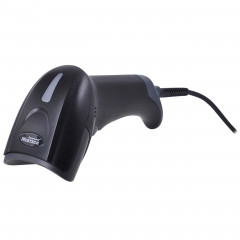
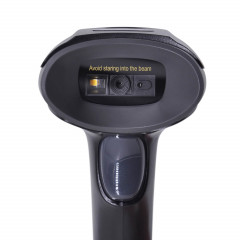
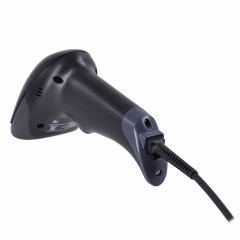
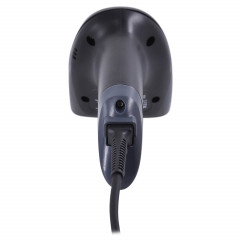
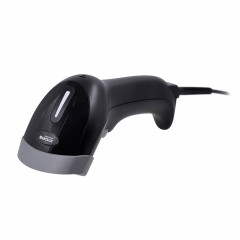
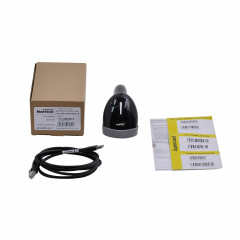
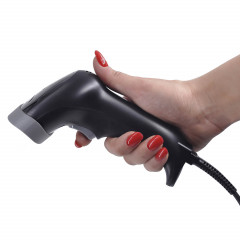
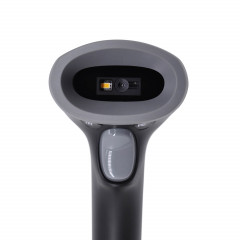
A pickup point needs a 2D imager. It reads QR codes and barcodes from smartphone screens, crumpled bags and at any angle. Every model in our barcode scanners for pickup points section is a 2D scanner.
What to look for in a pickup point scanner:
- Screen reading. The scanner should read a QR code on a phone even at minimum brightness.
- USB-HID interface. The scanner works as a keyboard and sends data to any software without drivers.
- Speed and reading angle. Mertech models read up to 100 scans per second, with 360° rotation and up to ±65° tilt.
- Stand. Customers hold their phone up to the scanner on its stand, so the operator's hands stay free.
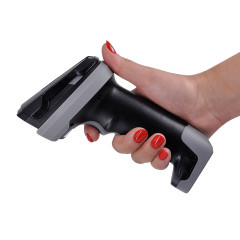
- Durability. The trigger is pressed hundreds of times per shift. Look for a rating of 3–5 million presses and drop resistance.
Wired or wireless barcode scanner
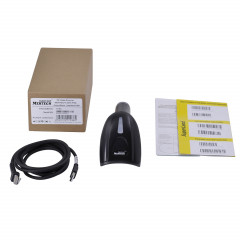
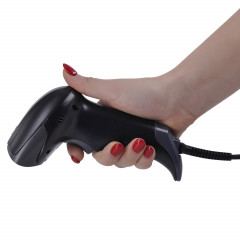
A wired barcode scanner connects via USB and never needs charging. It is the main option for the handover desk: the customer holds up their phone and the operator never has to look for the scanner. Choose a 2–3 m cable to reach large boxes.
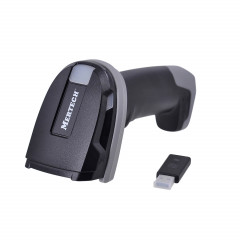
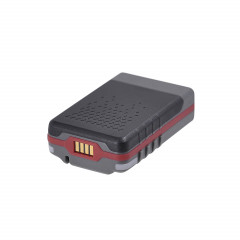
A wireless barcode scanner connects over Bluetooth or through a USB radio base. It is useful for receiving bags and boxes from the marketplace and for sorting parcels onto shelves. Mertech models with a radio base have a range of up to 300 m.
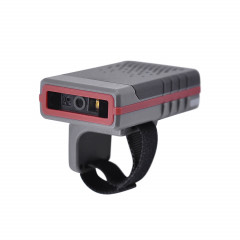
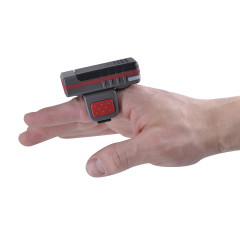
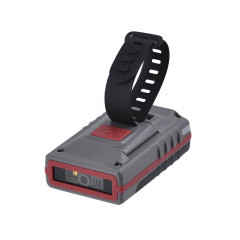
A ring scanner is worn on a finger and keeps both hands free, which helps when you handle a high volume of parcels.
The ideal setup is a wired scanner on the handover desk plus a wireless scanner for receiving. A small pickup point can manage with one wireless scanner on a stand.
| Model | Type | Key specs | Best for |
|---|---|---|---|
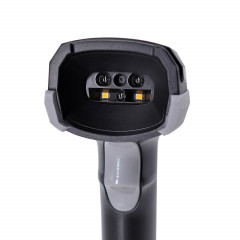
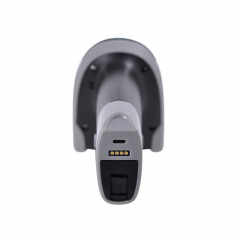
| MERTECH 1300 GS P2D | Wired | Global Shutter module, 2 m cable | Compact scanner for the handover desk |
| MERTECH 2310 P2D HR | Wired | 1280×1080 sensor, reads up to 570 mm | High volume, small and damaged codes |
| MERTECH CL-2410 BLE Dongle P2D | Wireless | Up to 300 m range, 5 million presses | Receiving, sorting, large parcels |
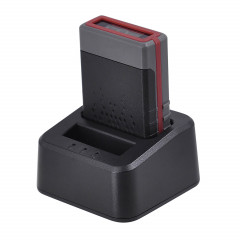
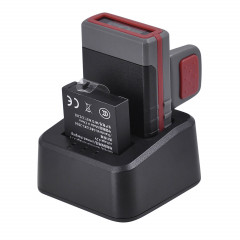
| MERTECH X21 BLE Dongle P2D | Ring scanner | Up to 100 m range, hands-free | Sorting high parcel volumes |
All models read QR codes from the Wildberries, Ozon and Kaspi.kz apps. For the difference between scanner types, see what is a barcode scanner and how does it work.
Label printer for a pickup point
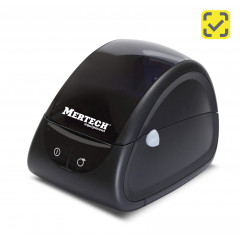
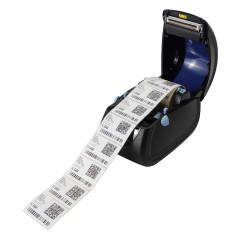
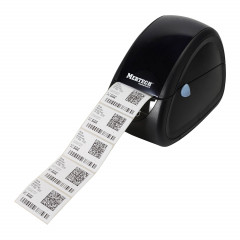
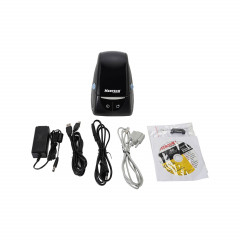
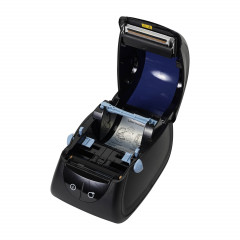
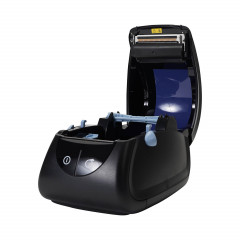
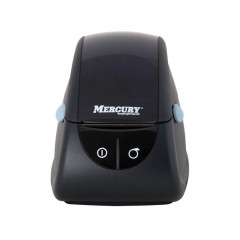
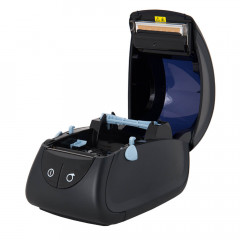
The printer produces shelf number stickers, return labels and waybills. A direct thermal printer is enough: it needs no ribbon, only a roll of thermal labels.
- 58 mm width for 58×40 mm stickers.
- 80 mm width or more for A7 waybills (105×74 mm). Kaspi.kz sellers print these when handing orders over to Kaspi Delivery, see how to sell on Kaspi.
| Model | Print width | Features | Best for |
|---|---|---|---|
| MERTECH LP58 EVA | 56 mm | 203 dpi, up to 7,000 labels a day | Shelf stickers, return labels |
| MERTECH LP80 EVA | 80 mm | 203 dpi, label gap sensor | A7 waybills, 58–80 mm labels |
203 dpi is enough for a barcode to scan on the first try. What matters is using the right label size and setting it correctly in the printer driver. See more models in label printers.
How to connect a barcode scanner to a computer
- Plug the scanner into a USB port. Charge a wireless scanner first and insert the radio base into a USB port.
- Windows detects the scanner as a keyboard, no driver needed.
- Open Notepad and scan any barcode. If digits appear, the scanner works.
- Open the marketplace software and scan a test QR code.
If letters appear instead of digits, switch the keyboard layout to English. In keyboard mode the scanner "types" characters, and the active layout affects them.
Scanner disconnected: what to do
- Check the cable and port. Plug the scanner into another USB port, directly into the computer rather than through an extension.
- Wireless scanner. Check the battery and the link to the radio base, and pair them again following the manual if needed.
- Connection mode. The software expects a keyboard (USB-HID) but the scanner is set to COM port mode. Switch it back to HID with a setup barcode.
- Cursor not in the input field. The scanner "types" where the cursor is. Click the order search field before scanning.